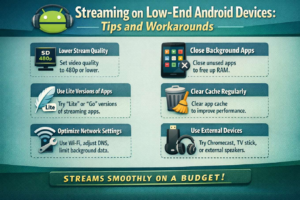

Not everyone streams on a flagship phone. Most people watch their favorite shows on budget Android devices — phones with 2GB or 3GB of RAM, modest processors, and storage that fills up faster than expected.
And that is completely fine. Low-end Android devices can deliver a genuinely good streaming experience — but only if you know how to set them up correctly.
This guide is written specifically for budget device users. Every tip is practical, tested, and designed for real hardware constraints. No vague advice. No suggestions that require spending more money. Just real workarounds that make a real difference.
What Counts as a Low-End Android Device in 2026?
A low-end device in 2026 typically has 2GB to 3GB of RAM, an entry-tier MediaTek or Unisoc processor, 16GB to 32GB of internal storage, a 720p screen, and runs Android Go Edition in many cases.
These devices are sold in enormous quantities across South Asia, Southeast Asia, Africa, and Latin America. They are the primary internet device for hundreds of millions of people — and with the right approach, they stream just fine.
The Specs That Define a Low-End Device
RAM is the most critical limitation. With 2GB, your operating system consumes roughly 1GB just to run, leaving only 1GB for everything else. A streaming app alone can consume 300MB to 500MB during playback. Add background processes and you are constantly on the edge of running out of memory.
Storage is the second constraint. With 16GB total and the OS consuming 6GB to 8GB, there is very little room for apps, cached content, and updates.
Why Low-End Devices Struggle With Streaming
Streaming video is computationally demanding. Your device must continuously receive network data, decompress it, decode the video codec in real time, render frames to the display, and manage audio simultaneously. On a budget processor with limited RAM, every one of these tasks is a genuine challenge — which is why dropped frames, buffering, and overheating are common on low-end hardware.
The Truth About Streaming on Budget Android Phones
You are not going to stream 4K HDR on a 2GB RAM device. But 720p streaming — which looks perfectly good on a small phone screen — is absolutely achievable with the right setup.
What You Can Realistically Expect
At 720p with optimized settings, streaming on a low-end device can be smooth and genuinely enjoyable. The visual difference between 720p and 1080p on a 6-inch screen is nearly invisible to most people at normal viewing distances. What you will notice is slightly longer app load times and faster battery drain — both manageable with the right habits.
Which Streaming Platforms Work Best on Low-End Hardware
YouTube is the most optimized for budget hardware, scaling gracefully to lower resolutions. Netflix’s official app performs reasonably well. Tubi and Pluto TV are lightweight, free, and run well on limited specs. Amazon Prime Video is more demanding. Disney Plus is the heaviest of the major platforms and performs worst on budget hardware.
Free Up Resources Before You Press Play
On a low-end device, resource management is not optional — it is essential. The difference between a smooth stream and a buffering nightmare often comes down to what else your device is doing simultaneously.
Killing Background Apps the Right Way
Do not just swipe apps away from the recent menu. On many Android devices this does not fully terminate background processes. Go to Settings, then Apps, select each non-essential app, and tap Force Stop. Do this for social media, music players, and news apps before every streaming session.
Developer Options That Help Your Stream
Enable Developer Options by tapping Build Number seven times in Settings, then About Phone. Set all three animation scales to 0.5x — this reduces interface processing overhead and makes the device feel faster. Set Background Process Limit to a maximum of two processes to prevent background apps from consuming the RAM your streaming app needs.
Internet Connection Tricks for Low-End Devices
On budget hardware, a weak connection causes more damage than it would on a flagship phone. A powerful device compensates for fluctuations by processing buffered data faster. A budget device cannot.
Consistency Matters More Than Speed
A stable moderate-speed connection beats a fast but unstable one on low-end hardware. Connect to 5GHz Wi-Fi where available. Position your device closer to the router during streaming. If on mobile data, manually switch between 4G and 3G to find the most stable signal — sometimes 3G consistency outperforms a weak 4G signal significantly.
Choosing the Right Video Quality Settings
This is the single most impactful optimization for low-end device users. Getting quality settings right eliminates most buffering instantly.
The Sweet Spot Between Quality and Performance
For most low-end devices, 480p to 720p is the sweet spot. The video codec is decodable without maxing out your processor, data consumption is low enough to buffer smoothly, and visual quality on a small screen is genuinely good. Do not set quality to Auto — it pushes your device to the highest resolution your connection supports, which often exceeds your processor’s comfortable limit. Manual quality selection controls both connection demands and processing load simultaneously.
The Netflix APK Free Download Latest Version — What You Must Know First
This section addresses one of the most searched topics among budget Android users — and one of the most dangerous corners of the internet for the uninformed.
Why People on Low-End Devices Search for Netflix APK
Budget Android devices often face one of two Netflix problems. Either the device is not certified for the Play Store version of Netflix and cannot install it normally. Or the Play Store version is too demanding for the device’s limited storage and RAM. This frustration drives millions of users to search for “Netflix APK free download latest version” — a search that leads directly into one of the most predatory ecosystems online.
The Only Safe Way to Get the Latest Netflix APK
The only legitimate source for the official Netflix APK is Netflix’s own website at netflix.com. Netflix maintains an official APK download specifically for Android devices not fully compatible with the Play Store. This APK is identical to the Play Store version in security and functionality. It is free to download and requires a valid Netflix subscription to use.
Visit netflix.com on a computer or secondary device and find their official APK download page. Use the Downloader app on your Android device to download the APK directly from Netflix’s official URL. Enable Unknown Sources temporarily for Downloader only, install the APK, then immediately disable Unknown Sources again.
How to Install the Official Netflix APK on a Low-End Device
Before installation, free up at least 200MB of storage. Install the Downloader app from the Play Store — it is free and legitimate. Open Downloader, enter the official Netflix APK URL from netflix.com, and wait for the download to complete. Tap Install and follow the prompts. After installation, sign into your Netflix account. Give the app two to three minutes on first launch to complete its optimization process — performance stabilizes significantly after this initial setup.
Netflix Settings That Improve Performance on Weak Hardware
Inside Netflix, go to App Settings immediately after installation. Set Video Quality to Low or Medium — on a small screen, Low quality Netflix is genuinely watchable and dramatically reduces processing load. Disable Autoplay Previews, which streams video continuously on the home screen and wastes RAM and battery even when you are just browsing. Close all background apps before launching Netflix every single time on a low-end device.
Lightweight Alternatives to Heavy Streaming Apps
Sometimes the official app is simply too heavy for your device. YouTube Go is a stripped-down official YouTube version designed for low-end hardware — it uses significantly less RAM, loads faster, and is available on the Play Store. It is an official Google product and completely safe.
If an app remains too demanding, try streaming through Chrome or Firefox’s mobile browser. Browser-based streaming often uses less RAM than dedicated apps because browsers do not maintain persistent background processes. Netflix, YouTube, and Prime Video all work through mobile browsers with a less polished but often smoother experience on very budget hardware.
Clearing Cache and Managing Storage
On a 16GB device, storage management is a constant discipline. Streaming apps accumulate cache aggressively. Clear your streaming app caches weekly on low-end devices — go to Settings, then Apps, select each streaming app, tap Storage, and tap Clear Cache. This recovers 500MB to 1GB of storage regularly and directly improves streaming performance. It does not delete your account information, watchlist, or preferences.
Battery Life and Streaming on Low-End Devices
Streaming drains battery fast on any device. On budget hardware with smaller batteries and less efficient processors, the drain is even more significant. Reduce screen brightness to 50 percent or lower during streaming — the display is the single largest battery consumer on any phone. Enable Battery Saver mode but exclude your streaming app from its restrictions so it does not get throttled mid-stream. Turn off Bluetooth, NFC, and GPS while streaming — these radios consume power even when not actively in use.
Conclusion
Streaming on a low-end Android device is not a compromise you have to accept quietly. With the right optimizations, the right app choices, and realistic quality expectations, budget Android streaming can be smooth and genuinely enjoyable.
Manage your resources aggressively before every session. Set video quality manually. Get the Netflix APK only from Netflix’s official website — never from the dangerous sites flooding search results with free download promises. Use lightweight alternatives where official apps are too demanding. Clean your storage regularly. Your device may be budget. Your streaming experience does not have to be.
FAQs
1. Can a phone with 2GB of RAM stream Netflix smoothly? Yes, with the right settings. Set Netflix to Low or Medium quality, force-stop all background apps before streaming, and clear the cache regularly. At these settings, a 2GB device can stream without constant buffering.
2. Is the Netflix APK free to download? The official Netflix APK from netflix.com is free to download. Using Netflix requires a paid subscription. Any site offering a Netflix APK with premium features for free is distributing malware — not a legitimate free version.
3. Why does Netflix not appear in my Play Store? Netflix uses device certification requirements that many budget phones do not meet. Download the official Netflix APK directly from netflix.com — Netflix provides this specifically for devices that cannot access it through the standard Play Store.
4. Does clearing cache delete my Netflix watchlist or downloads? No. Cache clearing removes only temporary files. Your account data, watchlist, viewing history, and downloaded content are stored separately and are completely unaffected.
5. What is the minimum internet speed needed for smooth streaming on a low-end device? For 480p, 1.5 Mbps is sufficient. For 720p, you need at least 3 Mbps. A stable 3 Mbps connection with consistent quality settings delivers a far better experience than a faster but fluctuating connection on budget hardware.