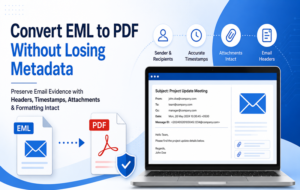

This guide explains different ways to convert EML files to PDF Adobe, including a manual approach and advanced EML to PDF for Mac tool that enables to transfer batch EML files to PDF documents.
Email messages are often stored as individual EML files when they are exported from email clients or saved from different mail applications. While EML is useful for preserving an individual message in its original email format, PDF is generally easier to share, print, archive, and access across different devices. Because of this, users may need to transfer EML files to PDF for documentation, record keeping, or offline access.
What is an EML File?
EML is an email message file format used by various email applications. It can store the content of an individual email along with information such as the sender, recipient, subject, date, message body, and attachments. EML files are supported by several email clients, making them convenient for saving individual messages.
However, opening EML files may require a compatible email application. This can make them less convenient when the objective is simply to view, print, or share an email.
What is a PDF File?
PDF, or Portable Document Format, is a commonly used document format for storing information in a consistent layout. A PDF can preserve text, images, formatting, and other content while allowing the document to be opened on different operating systems and devices.
For email archiving, PDF can be useful because the converted message can be viewed without depending on a particular email client.
Why Transfer EML Files to PDF?
- Easy sharing: PDF files can be shared without requiring the recipient to use an email application.
- Better printing: Emails stored as PDF documents can be printed conveniently.
- Long-term archiving: PDF is widely used for maintaining digital records.
- Consistent layout: Email content can be preserved in a document-oriented format.
- Offline access: Converted emails can be viewed without opening an email account.
- Bulk processing: Organizations may need to convert multiple EML messages for documentation or record management.
How to Transfer EML Files to PDF – Manual Method
A basic manual approach is to open each EML file in a compatible email client and use its print option to save the message as a PDF.
Steps to Transfer EML Files to PDF Manually
- Open the EML file using a compatible email application.
- Select the email message that you want to convert.
- Open the Print option from the application.
- Select the PDF or Save as PDF option.
- Choose the destination folder.
- Enter a suitable file name and save the PDF.
- Repeat the process for other EML files.
This approach can work when only a few EML messages need to be converted. However, processing a large number of files individually can take considerable time.
Risks and Limitations of the Manual Method
The manual approach may not be suitable for bulk EML conversion because of the following limitations –
- Each email generally needs to be processed separately.
- Converting hundreds of EML files can become time-consuming.
- Maintaining a consistent file-naming structure may require additional effort.
- Attachments may need to be handled separately depending on the email application.
- The process depends on having a compatible email client installed.
- Repeated manual operations can increase the possibility of missing or incorrectly processing files.
For a large collection of EML messages, an automated conversion approach can simplify the overall process.
EML Files to PDF Migration for Mac
The MacMister EML to PDF Converter for Mac provides an advanced way to process EML messages without converting them individually through an email client’s print function. The EML to PDF for Mac Tool is designed to convert EML files into PDF documents while processing multiple email files together.
The application can be useful when users have a large collection of EML messages and need them in a more accessible document format. Instead of manually opening and saving every email, users can add the required EML files or folders and process them in bulk.
The conversion process also supports email-related content such as attachments, headers, images, hyperlinks, signatures, and other message attributes, depending on the selected conversion settings.
Key Features of EML Files to PDF Migration for Mac
- Bulk EML Conversion: Add and process multiple EML files together instead of converting every message separately.
- Add Files or Folders: Select individual EML files or an entire folder containing multiple email messages.
- Attachment Support: Preserve email attachments during the conversion process.
- Email Attributes: Maintain important email information such as sender, recipient, subject, and date.
- Images and Hyperlinks: Retain relevant images, hyperlinks, and other content contained within the email.
- Signature Preservation: Keep email signatures as part of the converted document where supported.
- File Naming Options: Organize converted PDF files using suitable naming preferences.
- Mac Compatibility: The tool supports multiple macOS editions, allowing users to work with EML files on different Mac systems.
- Batch Processing: Handle a collection of EML files in one conversion process, reducing repetitive work.
Conclusion
EML is a useful format for storing individual email messages, but accessing and sharing large collections of EML files can sometimes be inconvenient. PDF provides a more document-oriented format that is easier to view, print, share, and archive.
For a small number of emails, the manual print-to-PDF method can be sufficient. However, users handling many EML files may prefer an automated approach to reduce repetitive work. The EML Converter for Mac tool provides bulk conversion along with support for email attributes, attachments, images, hyperlinks, signatures, and other message content, making it suitable for converting collections of EML files into PDF documents on Mac.