

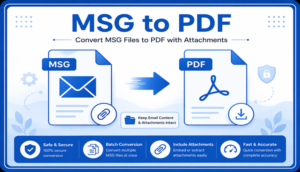

This guide explains how to import MSG Files into PDF Adobe by manual method & MSG to PDF Tool for Mac that can simplify the process.
Email messages are often saved in MSG format when they are exported from Microsoft Outlook. While MSG files are useful for retaining individual email messages, they are not always convenient for sharing, printing, or archiving. PDF, on the other hand, is a widely accepted document format that can be opened on almost any device.
For this reason, users often look for ways to import MSG files into PDF while keeping important email information such as the message body, sender and recipient details, date, subject, and attachments.
What is an MSG File?
MSG is a proprietary email message file format associated primarily with Microsoft Outlook. It can store an individual email along with various properties, including the sender, recipient, subject, date, message content, formatting, and other email attributes. Depending on how the message was saved, an MSG file may also contain attachments.
MSG files are useful when Outlook users need to save individual emails outside their mailbox. However, opening MSG files can be inconvenient on systems without Outlook or compatible applications.
What is a PDF File?
PDF, or Portable Document Format, is a document format designed to preserve the appearance and structure of content across different operating systems and devices. PDF files are commonly used for documentation, business communication, legal records, and long-term email archiving.
Unlike MSG, PDF does not depend on an email client for basic viewing. This makes it a practical choice when email messages need to be shared with other users.
Why Import MSG Files into PDF?
- Easy accessibility – PDF files can be viewed on computers, tablets, and smartphones.
- Convenient sharing – PDFs are easier to send to users who do not have Outlook.
- Printing – Email content can be prepared for printing in a standardized document format.
- Email archiving – Important messages can be stored as documents for future reference.
- Preserved presentation – Email content can be retained in a structured, readable layout.
- Batch processing – Users with large numbers of MSG files may need to convert them together rather than process every message individually.
Manual Method to Save MSG Files as PDF
If Microsoft Outlook is available, users can save an individual MSG email as a PDF through Outlook’s printing functionality.
Steps to Convert MSG Files to PDF Manually
- Open the MSG file in Microsoft Outlook.
- Review the email and make sure all required information is displayed.
- Select Print from the Outlook options.
- Choose a PDF printer, such as Microsoft Print to PDF, where available.
- Select the required page and layout settings.
- Choose a destination folder.
- Save the email as a PDF file.
This approach can work for a small number of emails. However, processing a large collection of MSG files individually can become time-consuming.
Risks and Limitations of the Manual Method
- Each MSG file generally needs to be opened and processed separately.
- Bulk conversion is not convenient.
- Maintaining consistent output settings across many emails can require additional effort.
- Email attachments may require separate handling.
- The process depends on having a compatible application available.
- Large collections can take considerable time to process manually.
- There is a greater possibility of accidentally skipping or misplacing files.
Because of these limitations, users handling a large MSG collection may prefer an automated conversion approach.
Advanced MSG to PDF for Mac Tool
An MSG to PDF Converter for Mac of MacMister provides a more convenient way to convert Outlook MSG files into PDF documents without processing every email individually. It is particularly useful when MSG files have been collected from different folders or stored in bulk on a Mac.
A dedicated converter can allow users to add multiple MSG files or entire folders and process them together. This reduces repetitive work and makes it easier to manage large email collections.
The conversion process can also retain important email information, including the sender, recipient, subject, date, email body, formatting, and other message attributes. Where required, attachments contained within MSG messages can also be handled during conversion.
How the MSG to PDF tool Works on Mac
- Install and open the MSG to PDF tool on your Mac.
- Add individual MSG files or select a folder containing multiple MSG files.
- Select the required email messages.
- Choose PDF as the output format.
- Select the destination location and other options.
- Start the conversion process.
The tool can process multiple MSG files in bulk, making it more practical for users who need to convert a large number of Outlook messages.
Key Features
- Converts MSG files into PDF format on Mac.
- Supports bulk MSG file conversion.
- Allows adding files and folders.
- Preserves important email attributes.
- Maintains email content and formatting.
- Handles email attachments during conversion.
- Provides an organized way to save converted PDF files.
- Suitable for processing large collections of MSG emails.
Conclusion
Importing MSG files into PDF is useful when Outlook emails need to be shared, printed, archived, or accessed without depending on an email client. The manual Outlook-based method can be sufficient for a few messages, but it becomes less practical when dealing with a large number of MSG files.
For bulk requirements, Mac MSG Converter of MacMister can simplify the process by allowing multiple files or folders to be processed together while retaining essential email information and attachments. This makes PDF a convenient format for storing and accessing Outlook email messages outside their original MSG environment.