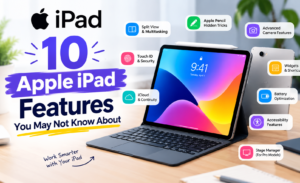

The Apple iPad is much more than a device for watching videos, browsing the web, or checking emails. With powerful iPadOS features, multitasking tools, Apple Pencil support, and seamless integration with other Apple devices, the iPad can become a highly capable productivity and entertainment device.
Many useful iPad features are easy to overlook, especially if you mainly use your iPad for everyday tasks. From creating Quick Notes and scanning documents to using your iPad as a second display for your Mac, there are plenty of iPad tips and tricks that can make your daily workflow faster and more convenient.
Here are 10 useful Apple iPad features you may not know about.
1. Customise Your iPad Lock Screen
Your iPad Lock Screen can do more than display the time and notifications. Depending on your iPad model and iPadOS version, you can customise widgets and access useful information without unlocking your device.
You can also interact with supported Lock Screen widgets and quickly access certain functions. On compatible iPads, Apple Pencil can be used from the Lock Screen to start taking notes.
Why it’s useful: Customise the Lock Screen with the information and shortcuts you use most often.
2. Use Stage Manager for Better Multitasking
If you frequently switch between multiple apps, Stage Manager can make multitasking easier on supported iPad models. It lets you organise apps and windows, resize them, and create groups for different tasks.
Newer iPadOS versions also offer flexible window management, including window tiling, resizing, Exposé, and other ways to organise multiple windows.
For example, you can keep Safari, Notes, and Messages available together while researching or working on a project.
Why it’s useful: It can turn your iPad into a more desktop-like productivity setup.
3. Drag and Drop Between Apps
The iPad makes it easy to move content between compatible apps using drag and drop.
You can select text, images, files, or other supported content and drag it into another app. For example, you can drag an image from Photos into Notes or move information from Safari into a document.
Why it’s useful: It reduces the need for repeated copy-and-paste actions and can speed up everyday tasks.
4. Scan Documents Directly With Your iPad
You don’t always need a separate scanner to digitise paperwork. The Notes app can scan documents directly using your iPad’s camera.
Open a note, choose the attachment option, and select the document-scanning feature. You can then save the scan inside your note and access it later.
Apple’s Notes app also supports photos, sketches, audio recordings, handwriting, and other attachments.
Why it’s useful: It’s convenient for scanning receipts, forms, notes, invoices, and other documents.
5. Create a Quick Note From Almost Anywhere
Quick Note is one of the most useful iPad productivity features for capturing information quickly.
You can create a Quick Note from an app or screen and save text, links, images, handwriting, and more. With a compatible Apple Pencil, you can also swipe up from the bottom-right corner of the screen to start a Quick Note.
For example, while browsing Safari, you can quickly save an important webpage or jot down an idea without leaving what you’re currently doing.
Why it’s useful: It’s ideal for students, professionals, researchers, and anyone who needs to capture ideas quickly.
6. Use Apple Pencil, Hover
If you have a compatible iPad and Apple Pencil, the Hover feature can provide a preview before you make a mark on the screen.
You can hold Apple Pencil above the display to preview certain tools, colours, line thickness, and other controls in supported apps. Apple says compatible models can detect Apple Pencil up to 12 mm above the display.
Why it’s useful: Apple Pencil Hover can provide greater precision when drawing, writing, editing, and working with creative apps.
Note: Apple Pencil Hover is available only on supported iPad and Apple Pencil combinations.
7. Turn Your iPad Into a Second Display for Mac
If you use both a Mac and an iPad, Apple’s Sidecar feature can turn your iPad into a second display.
You can extend your Mac desktop onto the iPad or use the iPad as an additional workspace. This can be particularly useful when editing photos, working with documents, drawing, or managing multiple windows.
Why it’s useful: Your iPad can become an additional screen without requiring a traditional external monitor.
8. Copy and Paste Between Apple Devices
One of the most convenient Apple ecosystem features is Universal Clipboard. It allows you to copy supported content on one Apple device and paste it on another nearby device.
For example, you can copy text on your iPhone and paste it into Notes on your iPad or Mac. Apple also supports other Continuity features such as Handoff, which lets you continue certain tasks across Apple devices.
Why it’s useful: It makes working across an iPhone, iPad, and Mac much more seamless.
9. Use Back Tap for Quick Actions
On supported Apple devices, Back Tap can provide a convenient shortcut for certain actions. Depending on the device and software, you can configure a double-tap or triple-tap gesture to perform supported actions.
If you’re looking specifically for iPad tips and tricks, keep in mind that Back Tap is primarily an iPhone feature rather than a standard iPad feature. For iPad, similar quick-access functionality can be achieved through features such as Control Centre, Shortcuts, Apple Pencil gestures, and other iPadOS controls.
Why it’s useful: Using device-specific shortcuts can reduce the number of taps required for frequently used actions.
10. Customise the Control Centre
Control Centre gives you quick access to commonly used settings and controls.
Depending on your iPadOS version, you can customise the controls available to make frequently used functions easier to access. This can be particularly useful if you regularly change settings such as connectivity, brightness, audio, or other supported controls.
Why it’s useful: A personalised Control Centre can make everyday iPad tasks faster and more convenient.
Conclusion
The Apple iPad offers far more functionality than many users realise. Features such as Quick Note, document scanning, Apple Pencil Hover, Sidecar, Universal Clipboard, and advanced multitasking can make the device significantly more useful for work, study, creativity, and everyday tasks.
If you’re looking for Apple iPad tips and tricks, exploring these lesser-known features is a great way to get more from your device. Keep in mind that feature availability can vary depending on your iPad model, Apple Pencil compatibility, and the version of iPadOS you’re using.
Try a few of these hidden iPad features and customise your workflow around the tools you use most.