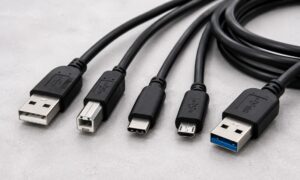

Open any drawer full of old electronics accessories and you’ll likely find a tangle of USB cables in different shapes, sizes, and colors. Despite being one of the most common connector standards in the world, USB cables aren’t actually interchangeable across every device. Choosing the right one comes down to understanding a few basic distinctions: connector shape, USB version, and the specific job the cable needs to do.
This guide breaks down the different types of USB cables, what OTG cables are and when you need one, and how to pick the right cable for your device without ending up with a drawer full of cables that don’t fit anything.
Understanding USB Connector Types
The biggest source of confusion when shopping for USB cables isn’t the technology inside the cable, but the physical shape of the connector on each end. Here are the main types you’ll come across:
USB Type A: This is the classic rectangular USB connector most people picture when they think of USB. It’s found on computers, wall chargers, car chargers, and USB hubs. Type A is not reversible, meaning it only fits one way into a port.
USB Type B: A roughly square-shaped connector, most commonly found on printers and some external hard drives. It’s less common in newer devices but still widely used in office equipment.
Micro USB: A small, trapezoidal connector that was the standard for charging and data transfer on Android phones, cameras, and other portable electronics for many years. While largely being phased out in favor of USB-C, plenty of devices still use it.
Mini USB: An older, slightly larger connector than Micro USB, once common on early digital cameras, MP3 players, and some GPS devices. It’s largely obsolete now but still found in some legacy hardware.
USB Type C: The current standard for most new devices, from smartphones to laptops. Type C connectors are reversible, meaning they can be plugged in either way, and they support faster data transfer and higher power delivery than older USB types.
When shopping for USB type cables, the first thing to check isn’t the cable’s technology or specs, but simply which connector shape matches the ports on both ends of the connection you’re trying to make.
USB Versions: What the Numbers Mean
Beyond connector shape, USB cables are also categorized by version, which determines how fast they can transfer data and how much power they can deliver.
- USB 2.0: The most widely used version for years, supporting data transfer speeds up to 480 Mbps. Most basic USB computer cable needs, like connecting a mouse, keyboard, or basic external drive, are well served by USB 2.0.
- USB 3.0: Offers significantly faster data transfer, up to 5 Gbps, and is often identified by a blue-colored connector or the “SS” (SuperSpeed) label. This is a better choice for external hard drives, SSDs, or any use case involving large file transfers.
- USB 3.1/3.2 and USB4: Newer standards that push data transfer speeds even higher, often used with USB-C connectors for high-performance external storage, docking stations, and display connections.
It’s worth noting that the connector shape and the USB version are two separate things. A cable can have a USB-C connector but only support USB 2.0 speeds internally, so if fast data transfer matters for your use case, it’s worth checking the specific version rating rather than assuming based on connector shape alone.
What Is USB OTG?
USB OTG, which stands for “On-The-Go,” is a specification that allows a mobile device, such as a smartphone or tablet, to act as a host for other USB devices rather than only connecting to a computer. In simpler terms, USB OTG lets you plug things like a flash drive, keyboard, mouse, or game controller directly into your phone or tablet, rather than needing a full computer to bridge the connection.
A cable OTG micro USB setup, for example, allows an older Android phone with a Micro USB port to connect directly to a USB flash drive or other peripheral. Similarly, many newer devices use a USB-C OTG cable or adapter for the same purpose, since USB-C has largely replaced Micro USB on current smartphones and tablets.
When You’d Use a USB OTG Adapter
A USB OTG adapter is typically a small dongle rather than a full cable, with a Micro USB or USB-C connector on one end and a standard USB Type A port on the other. This is useful in situations like:
- Transferring files from a USB flash drive directly to a phone or tablet, without needing a computer as an intermediary.
- Connecting a wired keyboard or mouse to a tablet for a more desktop-like experience.
- Plugging in a USB game controller for mobile gaming on supported devices.
- Connecting a card reader to import photos directly from an SD card into a phone.
Not every mobile device supports USB OTG, so it’s worth checking your device’s specifications before buying an OTG cable or adapter. Most Android devices from the past several years support it, though implementation and reliability can vary by manufacturer.
How to Choose the Right Cable for Your Situation
With so many connector types, versions, and specialty cables like OTG, choosing the right one comes down to answering a few simple questions:
- What are you connecting? Identify the connector type on both ends of the connection you need to make. A cable is only useful if both ends physically fit the devices you’re connecting.
- How much data are you transferring, and how quickly? For basic tasks like charging or connecting a keyboard, USB 2.0 is sufficient. For large file transfers or external SSDs, look for a USB 3.0 or faster cable.
- Do you need your phone or tablet to act as a host? If you’re trying to connect a peripheral like a flash drive or controller directly to a mobile device rather than a computer, you’ll need a USB OTG cable or adapter rather than a standard USB cable.
- How long does the cable need to be? Longer USB cables, especially with USB 2.0, can sometimes experience signal degradation over extended lengths. If you need a long run, look for cables specifically rated for longer distances or consider an active USB extension cable, which includes a signal booster.
Common Mistakes to Avoid
A few habits lead to frustration when buying USB cables:
- Assuming all cables with the same connector are functionally identical. Two USB-C cables can look identical but support very different data speeds or power delivery levels.
- Using a low-quality cable for high-power charging. Cheaper cables may not have the wire gauge needed to safely handle fast-charging power levels, leading to slow charging or excess heat.
- Overlooking OTG compatibility. Not all mobile devices support USB OTG, so confirm compatibility before assuming a cable or adapter will work with your specific phone or tablet.
Final Thoughts
USB has become the near-universal standard for connecting our devices, but “USB” alone doesn’t tell you everything you need to know before buying a cable. Paying attention to connector shape, USB version, and whether you need OTG support for a mobile device ensures you end up with a cable that actually does what you need, rather than one more mismatched cable in the drawer.